


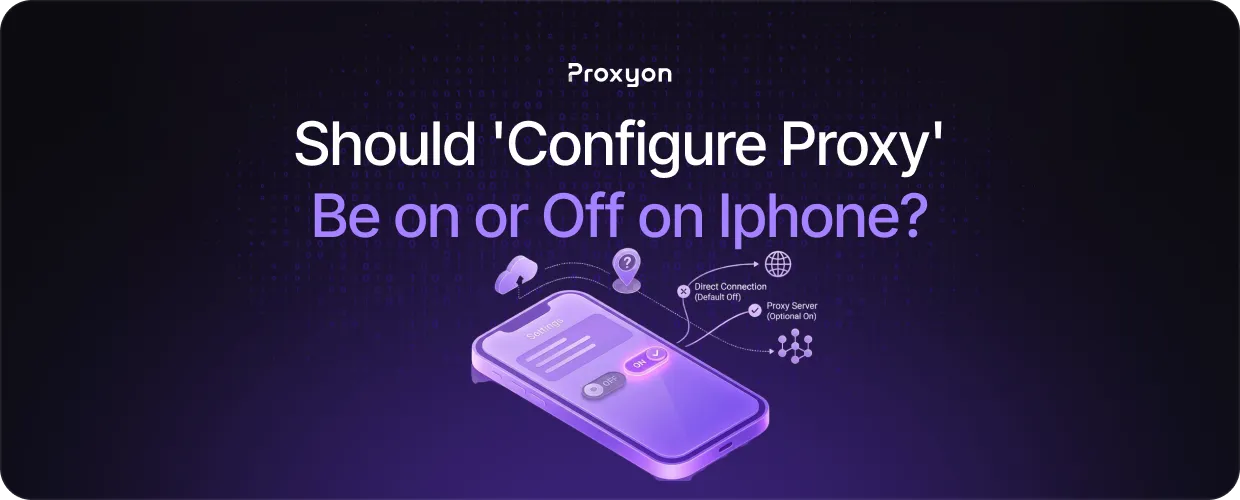
Configure Proxy is a setting inside your iPhone's Wi-Fi options, with no clear explanation of what it does. Most users either leave it on default or toggle it, trying to fix a connection problem, and end up making things worse.
In this article, we'll explore what Configure Proxy actually does, when to leave it off, and when turning it on makes sense.
What Configure Proxy Actually Does on iPhone
Configure Proxy controls whether your iPhone's traffic on a given Wi-Fi network routes through a proxy server before reaching its destination. You'll find it under Settings, tap Wi-Fi, tap the i icon next to your connected network, then scroll to the bottom under HTTP Proxy.
It gives you three options. Off means your iPhone connects directly with no intermediary. Manual means you enter a server address and port yourself. Automatic lets your iPhone detect proxy settings using WPAD, or you can paste in a PAC file URL if your provider supplies one.
Two important limitations: the setting only applies to the specific Wi-Fi network you are viewing, not all networks. It also only covers HTTP and HTTPS traffic, so apps built to bypass system proxy settings will ignore it entirely. Cellular data has no Configure Proxy option at all.
Also Read: Socks5 vs HTTP Proxy Explained
Should You Leave It On or Off?
For most users, Off is the correct answer. You only need to turn it on in two situations: your workplace or school network requires a proxy to grant internet access, or you are intentionally using a residential proxy or datacenter proxy service for privacy or IP masking.
If you found it enabled and never set it up yourself, that is worth investigating. A proxy can be configured on a network without your knowledge, meaning all your traffic on that Wi-Fi passes through it. Switching it to Off is the right call if you did not set it up intentionally. It is also one of the first things to check when pages suddenly stop loading on a specific Wi-Fi network.
How to Set It Up Correctly (Manual vs. Automatic)

Manual is the most common setup. Go to Settings, tap Wi-Fi, tap the i icon next to your network, scroll to HTTP Proxy, and select Configure Proxy. Choose Manual, enter the Server address and Port from your proxy provider, toggle Authentication on if credentials are required, then tap Save. If any detail is wrong, the pages will not load at all.
Automatic is for when your provider gives you a PAC file URL instead of individual credentials. Select Automatic, paste the URL into the URL field, and tap Save. Without a URL entered, your iPhone scans the network using WPAD, which works on some office networks but is unreliable elsewhere.
Since the setting is saved per network, always verify your configuration after switching Wi-Fi connections if something stops loading.
Also Read: Rotating Residential Proxies Explained
Final Thought
Configure Proxy should be off for most users. Turn it on only when a work or school network requires it, or when you are intentionally routing traffic through a proxy service.